Curricula and Live SessionsUpdated 5/25/2026· Published 5/25/2026· 0 views
Schedule live tutor Zoom sessions
Create live follow-up sessions for a curriculum, notify members and let learners join or add events to their calendar.
By Administrator
Manual cover image placeholder
Upload a cover image in Admin Settings > System Manuals to replace this training placeholder.
Curricula and Live Sessions
Schedule live tutor Zoom sessions
Create live follow-up sessions for a curriculum, notify members and let learners join or add events to their calendar.
What this function does and why it matters
Schedule live tutor Zoom sessions is part of the Curricula and Live Sessions workflow in ClassRoom.Study. The function exists to help the right stakeholder move from intention to action without guessing which page, button or record controls the outcome. Create live follow-up sessions for a curriculum, notify members and let learners join or add events to their calendar. In daily use this means a learner can understand what to do next, a creator can prepare learning material with fewer support questions, a company admin can manage people and evidence with a cleaner audit trail, and a platform admin can see whether the process is working at scale. For learners, curricula and live schedules explain what to study, when to attend and how to follow up. For tutors and company admins, they create a shared record of planned support, reminders, attendance expectations and completion state.
The benefit is not only convenience. This area protects operational consistency. It makes status visible before a person acts, keeps related records connected, and gives teams a repeatable way to train new users. When a company has many learners, courses, invoices, schedules or live sessions, small navigation mistakes become expensive. A clear manual gives every person the same mental map: where to start, what to check, what each control changes, and what proof should exist after the action is complete. Use this page as the plain-language reference when onboarding new staff, answering support tickets, checking compliance, or preparing screenshots for a branded internal guide.
Benefits and features
- Links live sessions to a curriculum or curriculum item.
- Invites members and adds learner calendar entries.
- Supports join links, reminders and manual done status.
Image placeholder
Video placeholder
Step-by-step navigation
Follow the steps in order the first time. After you understand the flow, you can jump directly to the control you need. For training purposes, replace every screenshot placeholder with the exact screen your users will see in production, including the correct company, role or learner context.
-
Step 1: Open Company, then Live Dashboard or schedule tools.
Screenshot placeholder for step 1
-
Step 2: Choose the curriculum and live item if applicable.
Screenshot placeholder for step 2
-
Step 3: Pick tutor, date, time and duration.
Screenshot placeholder for step 3
-
Step 4: Create the session, then confirm learners can see the live indicator and calendar item.
Screenshot placeholder for step 4
Good operating habits
Work from the smallest panel that gives you the control you need, confirm status chips before acting, and use exports or detail pages when you need an audit trail. If an action changes billing, access, certificates, AI usage, invitations, public content, or live session attendance, pause long enough to confirm the company, learner, course and date context. Add notes where the interface provides them. Use filters before exporting so the exported CSV answers a specific question. When training a novice, ask them to say what changed after each step; if they cannot explain the result, they should return to the record and check the status, timestamp, or linked activity before moving on.
Was this article helpful?
Related articles
Build a learning curriculum
Bundle courses, readings, files, assessments, videos and live sessions into a certificate-ready learning path.
Assign curricula to learners
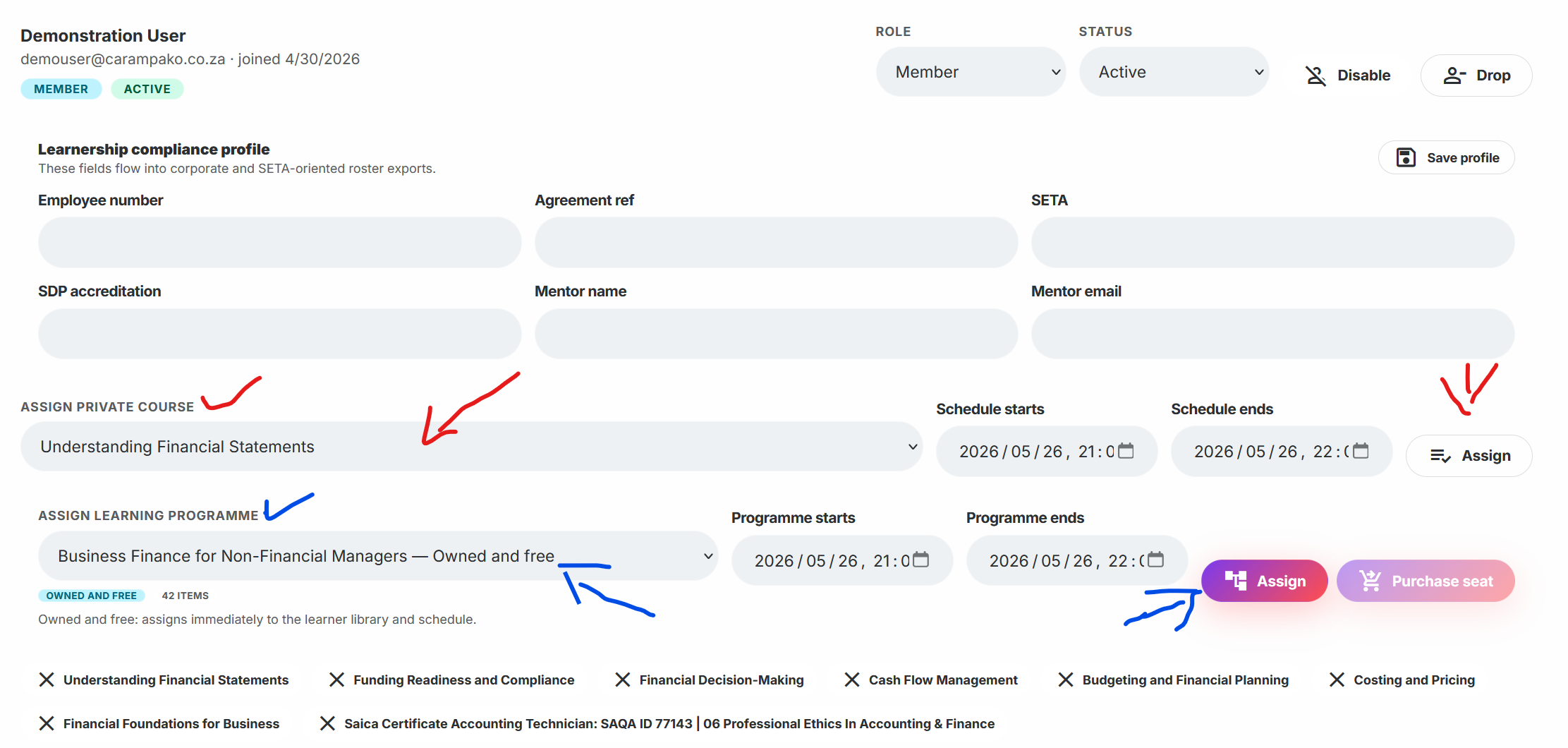
Assign owned, licensed or checkout-based learning programmes to active company members.
Schedule normal course study time
Place a course on a learner calendar so the learner knows when to study, resume and complete assigned training.